

Have a FIRE File? How to File Your 1099s in IRIS
reading time: 21 minute(s)
Every January, your accounting or payroll software produces a file, and you or your provider sends it to the IRS through FIRE. That routine ends with tax year 2026. Starting this year, IRIS is the only way to e-file 1099s with the IRS, and FIRE no longer applies to those returns.
This guide shows how to bring your existing FIRE file to TaxBandits, add the new 2026 fields, and file through IRIS.
Can you upload a FIRE file to IRIS for 1099 filing?
Not directly.
A FIRE file is a fixed-width text file built to the layout in IRS Publication 1220, the IRS specification for FIRE files. IRIS can’t read it. It accepts returns in two ways:
- Taxpayer Portal: You key in forms on the IRS website or upload a CSV file. The portal accepts only the CSV template the IRS provides.
- A2A (application-to-application): Your software sends XML (Extensible Markup Language) directly to the IRS. XML labels each piece of data with a named tag, while a FIRE file identifies data only by character position, so it must be converted.
So the file has to be converted. You have three options:
- Convert it yourself. You build XML for A2A. That takes an IRIS TCC, a separate API Client ID application, and successful test transmissions in the IRS Assurance Testing System before production filing. The TCC application alone can take up to 45 business days.
- Wait for your provider. This works only if they’ve committed to IRIS for tax year 2026.
- Upload the file to TaxBandits. TaxBandits converts it and files it with the IRS through IRIS on your behalf.
Why is TaxBandits the easier route?
Getting a file into IRIS is only part of the job. Around it are the conversion, the pre-filing checks, the post-filing status tracking, the state filings, and the recipient copies. If you file through IRIS yourself, every one of those is yours to build or manage.
TaxBandits has been IRIS-ready for more than two years, and we built our system to handle all of it in one place.
| Filing yourself through IRIS | Filing through TaxBandits | |
| Access and credentials | Your own IRIS TCC, plus an API Client ID and IRS testing if you use A2A | None. TaxBandits files under its own IRIS authorization |
| FIRE file to IRIS | Reformat it into the IRS CSV template or key it in (Taxpayer Portal), or build XML (A2A) | Upload your FIRE file as is |
| Checks before filing | You review the data yourself, and the IRS reports errors after you submit | TIN Matching, field-level validation and Smart Review before anything is sent |
| Status tracking | You check the portal or read IRS acknowledgments | Live status for each return in your account |
| State filing | Not included, so you file with each state separately | Included: Combined Federal/State filing, or direct state filing |
| Recipient copies | Not included, so you print, mail, or deliver them yourself | Postal Mailing or Online Access |
Bringing your 1099 FIRE file to TaxBandits
You keep the file your systems already produce. You upload it, TaxBandits converts it to XML, you review the result, and TaxBandits files it. Your part is a few checks, plus the new 2026 fields.
1. Check the file before you export
A FIRE file is a series of 750-character records: a T record for the transmitter, an A record starting each payer, a B record for each payee, and a C record closing each payer with totals. Confirm these before you export:
- Tax year: Positions 2-5 of the T, A, and B records; one tax year per file.
- Test flag: Position 28 of the T record must be blank on a live file.
- Format: Plain text (ASCII). Use a text editor, since spreadsheets strip leading zeros.
- C record totals: Note each payer’s payee count and totals for step 4.
- TINs: Nine digits, no hyphens, no blanks.
- Corrections: G or C in position 6 of a B record marks one, so tell us if your file has any.
Keep an untouched copy of the file.
2. Cover the new 2026 fields
A standard FIRE file can’t carry the new 2026 boxes: cash tips, Treasury Tipped Occupation Codes (TTOC, which identify a payee’s tipped occupation) and qualified overtime on the 1099-NEC, 1099-MISC and 1099-K, plus Trump account boxes on the 1099-R. The IRS assigned them no positions.
If any of your payees have these items, you have two ways to add them. If none do, skip this step.
Option A: Add them to your file before uploading.
All of the new fields sit in the payee B record.
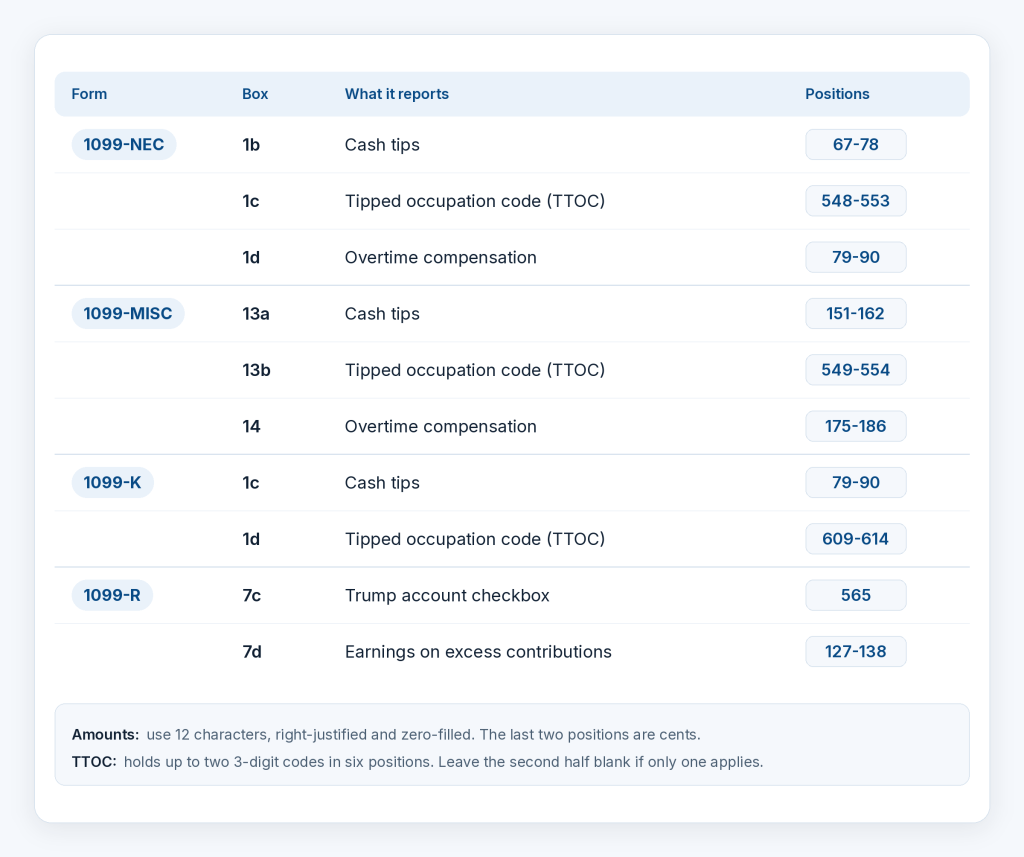
Option B: Add them after uploading, through a separate CSV.
Upload your FIRE file as is, then bring in the new fields for the affected recipients in a separate CSV. This suits you if your software can’t write the new fields, or if you’d rather not edit the file.
3. Upload the file as is
Don’t reformat anything. Here’s how the upload works:
- Sign in and start a new form: Sign in to your TaxBandits account and go to the 1099/W2 dashboard. Click ‘Start New Form’, choose the 1099 form you’re filing, and select the tax year.
- Choose bulk import and upload: Pick the FIRE file option. Drag and drop it or choose it from your computer.
- Check preview: TaxBandits shows a preview of the first records so you can confirm values landed in the right fields before you continue. If something looks off, fix it and upload again.
Behind the scenes, IRIS organizes returns into transmissions, submissions, and records, so TaxBandits regroups your flat lines into that structure and produces the XML. You never see or edit it.
4. Reconcile before you file
Before you file, check that what TaxBandits imported matches the file you sent.
- Count the returns and compare them with each payer’s C record payee count from step 1.
- Check the amounts against your source system, then open a few unusual records: one with cents, one with withholding, one with tips or overtime and one with a business name.
- Look at the names. FIRE stores names in two 40-character lines, so confirm business names and middle initials came through as expected.
5. Validate, fix and file
IRIS checks data more strictly than FIRE did, so TaxBandits checks it first:
- TIN Matching compares recipient names and TINs against IRS records.
- Field-level validation checks required fields against IRS rules.
- Smart Review flags missing or inconsistent details.
- Automated W-9 requests go out for mismatched TINs.
If the same error appears across many records, fix your source system and re-export, so next year’s file is clean. Then file: TaxBandits transmits directly to the IRS.
6. Meet state filing requirements
The IRIS covers the federal side only, so state filing is a separate step.
- For states that take part in the Combined Federal/State Filing (CF/SF) program, the IRS forwards your data to the state, and TaxBandits does this at no extra cost.
- For states that don’t participate, or that require their own filing, TaxBandits files directly with the state for you, so you don’t track each state’s rules separately.
7. Distribute recipient copies
Each recipient is owed their own copy of the form, separate from your IRS filing. TaxBandits delivers them for you through Postal Mailing or Online Access, so there’s nothing to print or send yourself.
8. Track status
Each return shows Accepted (the IRS took it), Accepted with Errors (taken but flagged, often a TIN or name mismatch), or Rejected (due to any errors).
Under The Bandit Commitment, TaxBandits covers the cost of filing 1099 corrections on returns that come back Accepted with Errors, and helps retransmit rejected ones.
Other ways to bring your data in
Not everyone has a FIRE file, and TaxBandits is built to accommodate the requirements of every filer.
| Method | Best suited if |
| CSV upload | Your data lives in spreadsheets |
| Accounting integrations | Payments are already recorded in QuickBooks, Xero, FreshBooks or Zoho Books |
| API | Software that pays many recipients and needs filing built in |
Conclusion
The first big deadline is the 1099-NEC on February 1, 2027, because January 31 falls on a Sunday. If you’d rather not build or wait on a conversion, you can request a demo or start your FIRE-to-IRIS switch with TaxBandits.
Leave a Comment